
Transactional Inbox and Outbox Patterns: Practical Guide for Reliable Messaging

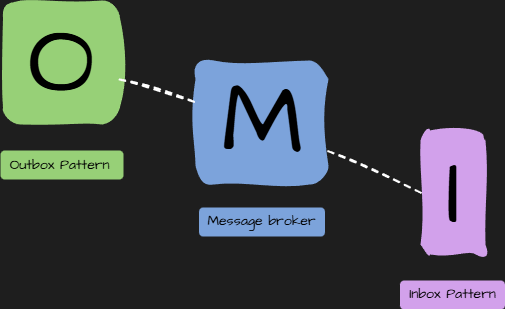
Modern distributed systems communicate via messages. But networks fail. Databases fail. Sometimes messages get lost. Other times, they get processed twice.
Inbox and Outbox patterns solve two core problems in distributed systems:
- Outbox: Ensures outgoing messages are reliably published after your transaction.
- Inbox: Ensures incoming messages are processed exactly once, even if they arrive repeatedly.
These patterns help you build systems where messages don’t disappear, and handlers don’t miss or double-handle events.
The Problem: Reliable Messaging Without Distributed Transactions
Imagine your service saves an order to the database and then publishes an OrderCreated event. What happens if your database commit succeeds, but the message publish fails?
You now have an order in the DB, but no event for other services.
Distributed transactions, like 2-Phase Commit, would solve this if they worked well in real systems. They don’t. They are slow and often unavailable across services.
Inbox and Outbox patterns give you a reliable alternative without distributed transactions.
Outbox Pattern
Outbox ensures that business data and outgoing messages are saved within the same database transaction. That means either both the data and the event are saved, or neither.
A background process later picks up the unsent messages and publishes them.
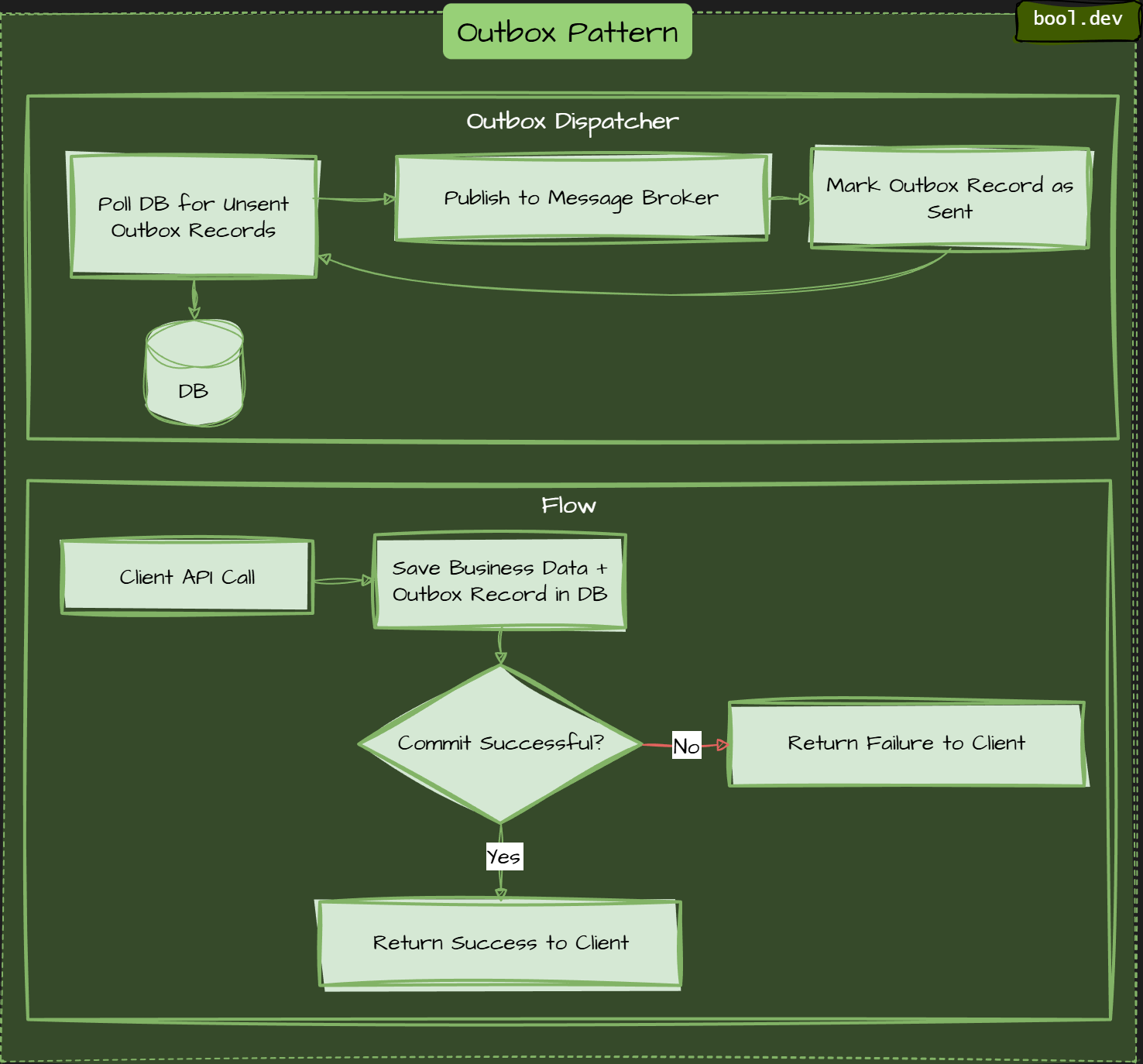
Outbox dispatcher runs separately, picks up pending messages, publishes them, marks them as sent.
Inbox Pattern
Inbox pattern ensures that a message received by a consumer service is processed and recorded atomically with the consumer's state change, preventing message loss or duplicate processing.
Inbox means:
- On message receive, check if already processed.
- If not processed, handle and record it.
- If processed, skip it.
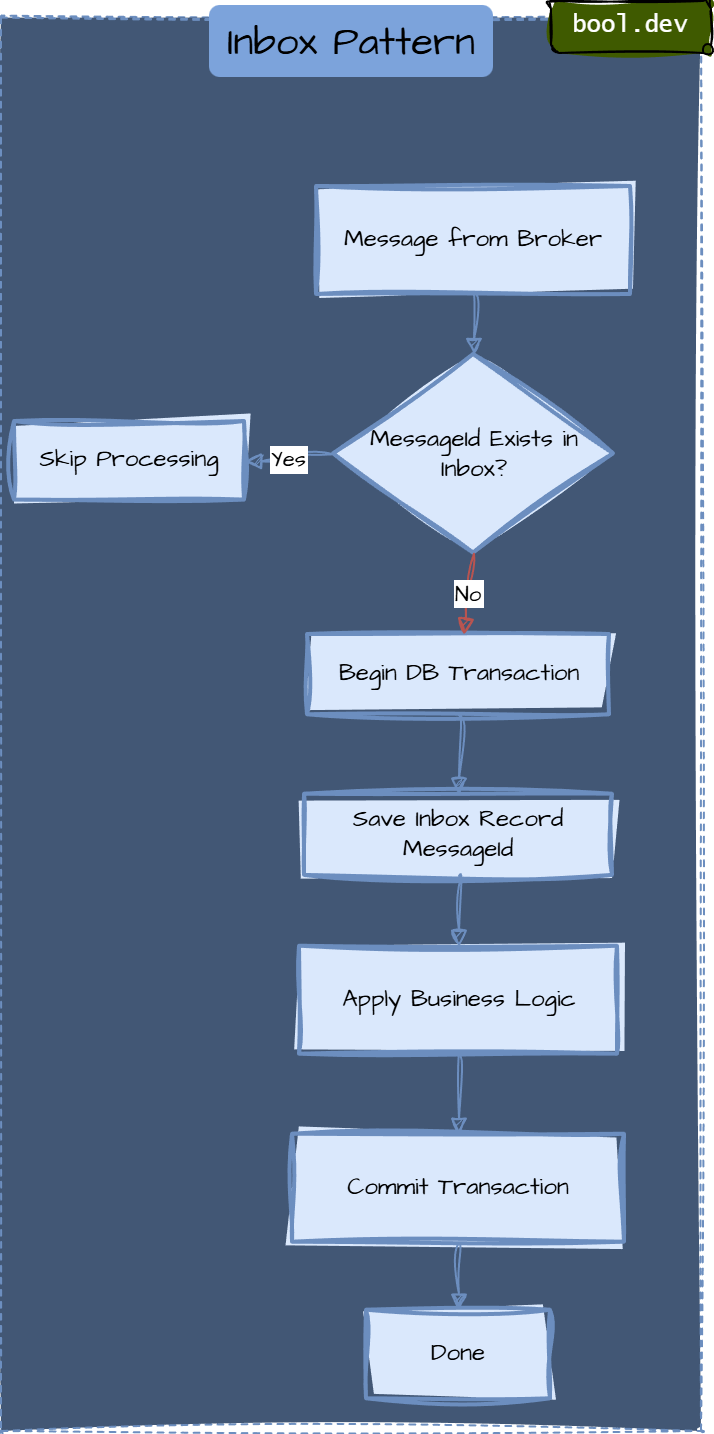
If message is new, we store it and process business logic in one transaction.
When to Use These Patterns
Use them when:
- You need reliable message delivery.
- You cannot afford lost or duplicate events.
- You do async communication across services.
Skip them when:
- You have simple sync systems.
- Async messages don’t carry significant state changes.
Common Mistakes
- Not keeping a unique constraint on
MessageIdin inbox. - The publisher writes to the outbox, but the dispatcher never runs.
- No retry logic for dispatcher.
- Cleaning out the outbox records too soon.
- These bite teams undermine the reliability you built.
Outbox and Inbox Together
Below is the end-to-end message flow from the moment a client requests until the consumer processes it. The image you shared visualizes this flow in one place. I’ll describe each numbered step, then provide a Mermaid flowchart that follows the same logic.
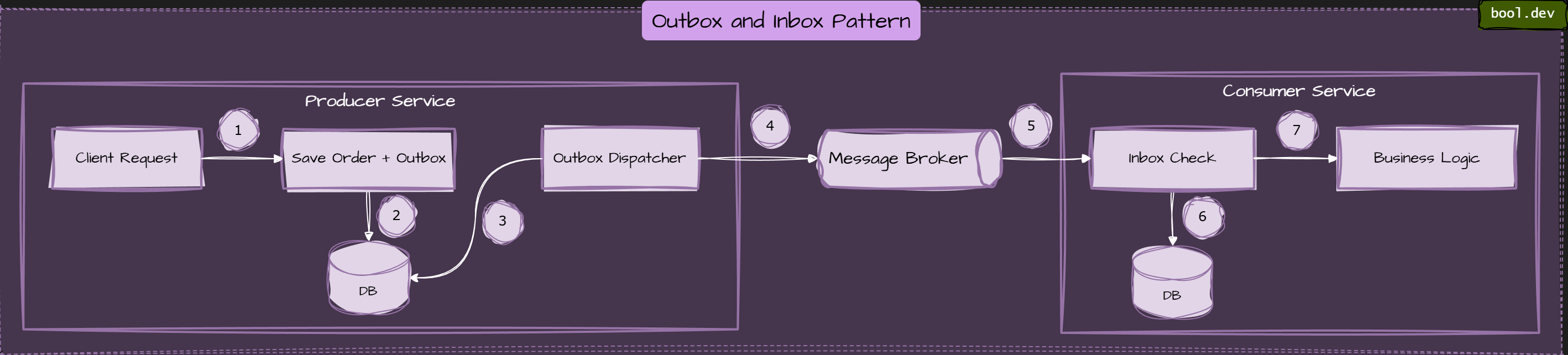
1. Client Request to Save Order + Outbox
The client sends a request to create a new order. The service:
- Begins a local transaction.
- Saves the business entity (Order).
- Creates an outbox record that includes the event (e.g., OrderCreated) but does not publish it yet.
2. Write to DB (Atomic Save)
This step ensures the business data and the outbox event are saved together:
- If either write fails, the whole transaction rolls back.
- If both succeed, the transaction commits.
3. Outbox Dispatcher Publishes Event
A background process periodically:
- Scans the
Outboxtable. - Picks unsent events.
- Publish them to the message broker.
- Marks them as sent.
4. Message Broker Receives Event
Once the Outbox Dispatcher pushes the event:
- The message broker receives it.
- It makes it available to anyone subscribed.
5. Broker Delivers Event to Consumer Service
The consumer picks up the event from the broker.
- Delivery might happen more than once.
- Networking or consumers can retry deliveries.
6. Inbox Check in Consumer
Before applying business logic:
- The consumer queries the Inbox table by
MessageId. - If already processed, skip.
- If new, begin a local transaction.
7. Business Logic
In a single transaction:
- Insert a record into the Inbox table to mark the message as processed.
- Execute the business logic.